Learn how to navigate easily within Kumospace
This page will guide you through the basics of navigating and interacting within our virtual spaces, making your experience seamless and intuitive.
Move your character as you move in reality
Use WASD keys or arrow keys to move your character around the virtual space. Your audio and video will automatically activate when you're near other participants, creating a natural interaction experience.
You can customize your character's appearance and adjust movement speed in the settings menu for a personalized experience.
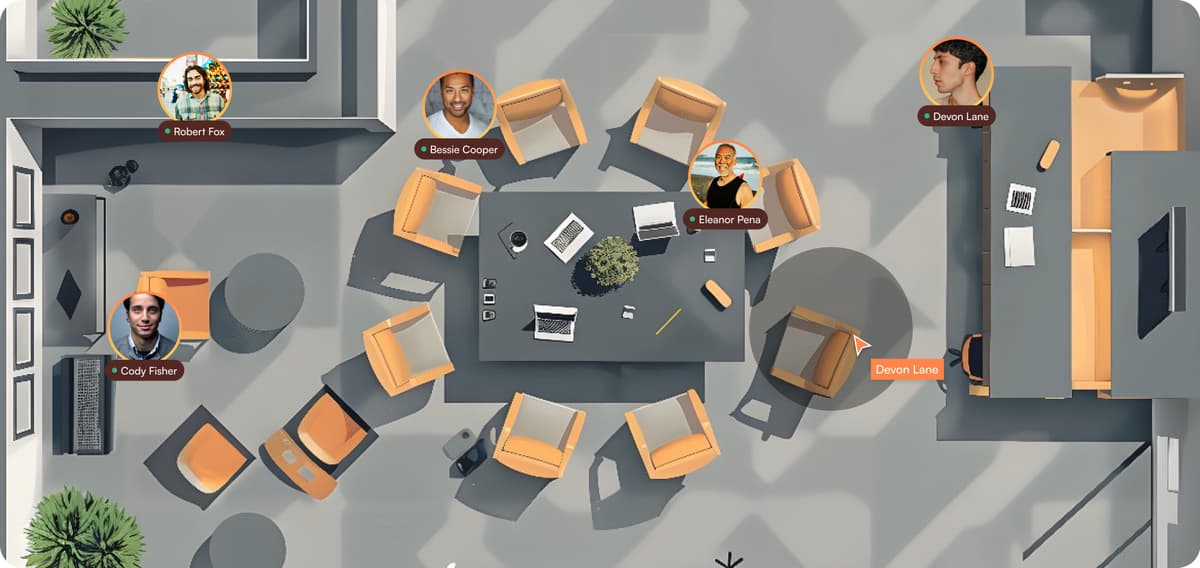
Spatial Audio: Hear as if you were there
Experience realistic audio where sound intensity depends on your character's position relative to others. As you move closer to someone, their voice becomes clearer, and as you move away, it fades naturally.
Toggle your camera and microphone on/off using the control bar at the bottom of the screen for complete control over your presence.
Click, Sit, Interact!
Discover interactive elements throughout Kumospace. Click on chairs to sit down, interact with coffee machines, or play music to create a more engaging environment.
These interactions add a layer of realism to your virtual experience and make collaboration feel more natural and enjoyable.
Simple and Effective Control Panel
Access powerful controls through the intuitive control panel:
• Full microphone control - mute/unmute with one click
• Camera options - turn on/off, add custom backgrounds
• One-click screen sharing for presentations
• Map feature to monitor your location or explore other areas
Tips for Mastering Navigation
Take advantage of advanced navigation features:
• Use the 'Go To' feature to quickly jump to colleagues' locations
• Click the 'Map' button for a full view of your virtual space
• Explore 'Audio Lounges' for free-form group interactions
• Use keyboard shortcuts for faster navigation